
In the exciting world of game development, Pygame stands out as an accessible and fun library for Python enthusiasts eager to create their own games. You’ll explore how to harness the power of this toolkit to bring your gaming ideas to life, whether you’re just starting out or looking to sharpen your programming skills. Get ready to learn step-by-step techniques that will guide you through the basics of game creation using Python.
This tutorial will walk you through the essentials of Pygame, covering everything from installation to coding your first game. With insights tailored for beginners, you’ll quickly gain the confidence and knowledge to experiment further, allowing your creativity to shine as you design unique gaming experiences. Dive in and discover just how rewarding it can be to build your own games!
Introduction to Pygame
What is Pygame?
Pygame is an open-source library designed for writing video games in Python. It provides tools and functionalities to create interactive applications that can run on various platforms, including Windows, macOS, and Linux. With Pygame, you can build games with colorful graphics, sound effects, and user interactions, making it an excellent choice for both beginners and experienced developers looking to prototype ideas quickly.
History and Development of Pygame
Pygame was created by Pete Shinners in 2000 as an initiative to make game development accessible to Python programmers. The library was designed to simplify some of the more complex aspects of game programming, enabling developers to concentrate on creativity rather than struggling with low-level code. Over the years, Pygame has evolved significantly, with contributions from many developers around the globe, enhancing its features and ensuring it remains compatible with the latest versions of Python.
Key Features of Pygame
Pygame comes packed with features that make game development easier. Some of its key features include:
- Graphics Rendering: Pygame allows for 2D graphics rendering using various surfaces, which can be easily manipulated and drawn upon.
- Event Handling: It facilitates managing user inputs from the keyboard and mouse.
- Sound and Music Support: It supports WAV, MP3, and other audio formats, allowing you to add effects and background music to your games.
- Collision Detection: Built-in tools help identify when game objects interact, a crucial aspect of gameplay mechanics.
Setting Up the Development Environment
Installing Python
Before diving into Pygame, you need to install Python. You can download the latest version from the official Python website. Follow the installation prompts, ensuring you check the option to add Python to your system’s PATH. This makes it easier to run Python from the command line or terminal.
Installing Pygame
Once Python is installed, the next step is to install Pygame. Open your command line interface (CMD on Windows, Terminal on macOS/Linux) and execute the command pip install pygame. This command downloads the Pygame library and makes it available for your Python projects. You can verify the installation by opening a Python shell and executing import pygame, which should run without any errors.
Setting Up an IDE or Text Editor
To write and edit your Python code, you’ll need a suitable IDE (Integrated Development Environment) or a text editor. Popular choices include PyCharm, Visual Studio Code, or even simple editors like Sublime Text and Atom. Choose one that you find comfortable, install it, and start a new Python project where you can create your game.
Getting Started with Pygame
Creating Your First Pygame Window
To begin with Pygame, let’s create a simple window. Here’s a basic code snippet:
import pygame pygame.init()
Set up the display
screen = pygame.display.set_mode((800, 600)) pygame.display.set_caption(“My First Pygame Window”)
Main loop
running = True while running: for event in pygame.event.get(): if event.type == pygame.QUIT: running = False
pygame.quit()
This code initializes Pygame, creates a window of size 800×600 pixels, and keeps it open until you click the close button.
Understanding the Game Loop
Every Pygame application uses a game loop, which continuously runs while the game is active. Inside this loop, you handle events, update game states, and render graphics. The structure usually includes an event loop for input handling, updates to game properties, and a rendering section to draw the game’s state on the screen.
Handling Events in Pygame
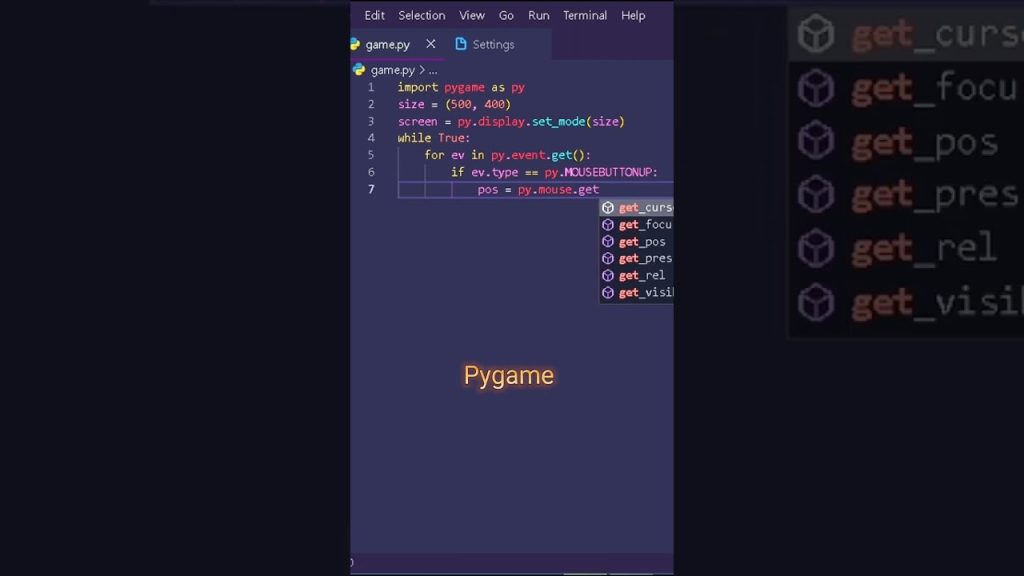
Events in Pygame involve interaction with the user. Handling events like keyboard presses or mouse clicks is essential for a responsive game. You use the pygame.event.get() function to retrieve events and check them using conditions. If a specific event occurs, you can trigger the appropriate response, such as moving sprites or changing game states.
Drawing Shapes and Images
Using Pygame to Draw Basic Shapes
Pygame makes it easy to draw simple shapes like circles, rectangles, and lines. Here’s how you can draw a rectangle on the screen:
Inside your game loop
screen.fill((255, 255, 255)) # Fill the screen with white pygame.draw.rect(screen, (0, 128, 255), (50, 50, 200, 100)) # Draw a blue rectangle pygame.display.flip() # Update the display
This example fills the background with white and draws a blue rectangle. pygame.display.flip() updates the entire screen to reflect the new drawing.
Loading and Displaying Images
Pygame can also handle image files, which you can load and display in your game. Here’s how you can accomplish this:
image = pygame.image.load(“path/to/image.png”) screen.blit(image, (100, 150)) # Blit the image onto the screen at coordinates (100, 150)
Make sure to replace "path/to/image.png" with the correct path to your image file. The blit function is used to draw the image on the screen at the specified position.
Creating Simple Animations
By changing the position of shapes or images in each frame of the game loop, you can create simple animations. Adjust the coordinates within the main loop to create motion, for example, moving a rectangle across the screen.
Working with Colors and Fonts
Defining Colors in Pygame
Color in Pygame is defined using RGB values. Each color is a combination of red, green, and blue components, where each component can have a value from 0 to 255. For instance, white is (255, 255, 255) and black is (0, 0, 0). You can define your colors at the start of your program for easy reference.
Using Custom Fonts
Pygame allows you to use custom fonts for any text you want to display. First, you can load a font, then create text surfaces that you can blit onto the screen:
font = pygame.font.Font(“path/to/font.ttf”, 36) # Load a font text_surface = font.render(“Hello Pygame!”, True, (0, 0, 0)) # Create a text surface screen.blit(text_surface, (200, 300)) # Blit it to the screen
Replace "path/to/font.ttf" with the path to your desired font file.
Text Rendering Techniques
When rendering text, it’s essential to manage size and color for clarity and aesthetic appeal. Experiment with different font sizes and styles to create an engaging user interface. You might also want to consider the background against which text is rendered, ensuring it remains readable.
Implementing Sound and Music
Adding Sound Effects
Integrating sound effects into your game enhances the experience significantly. Pygame supports various audio formats. You can load sound files using:
sound_effect = pygame.mixer.Sound(“path/to/sound.wav”) sound_effect.play() # Play the sound effect
Simply replace "path/to/sound.wav" with your sound file path. Sound effects can be tied to specific events in your game, such as collecting items or jumping.
Playing Background Music
To enhance atmosphere, you can also play background music that loops throughout your gameplay. Use the following commands:
pygame.mixer.music.load(“path/to/music.mp3”) pygame.mixer.music.play(-1) # Play the music indefinitely
This line will loop the music until you manually stop it or change the track.
Managing Audio Volume
Pygame allows you to control the volume of sounds and music. You can adjust it between 0.0 (mute) and 1.0 (full volume):
pygame.mixer.music.set_volume(0.5) # Set music volume to 50%
Consider fine-tuning audio levels during the development phase to ensure a balanced output.
Creating Game Objects and Classes
Defining Game Object Classes
Object-oriented programming (OOP) can significantly improve the organization of your game. By defining classes for different game objects, you can create reusable code. For instance, a Player class might be structured like this:
class Player: def init(self, x, y): self.x = x self.y = y self.image = pygame.image.load(“path/to/player.png”)
def draw(self, surface): surface.blit(self.image, (self.x, self.y)) Initializing Properties and Methods
Within your class, you can have properties (attributes) and methods (functions) that define the object’s behavior. For example, adding a method to move and draw the player:
def move(self, dx, dy): self.x += dx self.y += dy
Updating and Drawing Objects on the Screen
You can create a list of your game objects and iterate through them in the game loop, updating their state and rendering them:
player = Player(400, 300) players_list = [player]
for p in players_list: p.move(1, 0) # Example movement p.draw(screen) # Draw the player
This demonstrates how to manage multiple game entities efficiently.
User Input and Controls
Handling Keyboard Input
Handling keyboard input is crucial for player control. You can check for specific key presses like this:
keys = pygame.key.get_pressed() if keys[pygame.K_LEFT]: player.move(-5, 0) # Move left if keys[pygame.K_RIGHT]: player.move(5, 0) # Move right
This allows for real-time player movement based on keyboard input.
Mouse Interactions
Pygame also supports mouse interactions, allowing you to capture mouse events and check for button clicks or movements. This can be useful for menu navigation or in-game actions:
for event in pygame.event.get(): if event.type == pygame.MOUSEBUTTONDOWN: if event.button == 1: # Left mouse button print(“Mouse clicked at:”, event.pos)
Implementing Game Controls
Implementing controls that feel natural to users is essential for gameplay. Consider the responsiveness of controls and adjust sensitivity based on your game’s needs. You can also design customizable key bindings for advanced players.
Game Logic and Mechanics
Creating Collision Detection
Collision detection is vital in almost all games. Pygame provides functions to check for overlaps between rectangles (Bounding Box Collision), useful for detecting interactions between sprites. Implementing collision detection might look like this:
if player.rect.colliderect(enemy.rect): print(“Collision detected!”)
This checks if two objects’ rectangles intersect.
Implementing Scoring Systems
Adding a scoring system can motivate players to engage further. Create a variable to keep track of scores and update it when players accomplish certain tasks, for example, collecting items or defeating enemies.
score = 0
When an item is collected
score += 10 # Increase score
Managing Game States
Handling different game states (e.g., Menu, Playing, Game Over) can keep your game organized. Use a variable to track the current state and switch between them based on conditions like user input or game events:
if current_state == “menu”: # Show main menu elif current_state == “playing”: # Game logic here
This design makes it clear where to place different functionalities within your game.
Conclusion
Recap of Pygame Concepts
You’ve now covered the fundamentals of Pygame, including setting up your environment, handling graphics and audio, defining game mechanics, and managing user input. Each topic is a stepping stone toward creating your own unique games.
Encouragement to Innovate
Don’t hesitate to explore and innovate. Pygame offers a playground for your creativity. Play around with game ideas, experiment with different features, and steadily build your skills. The only limit is your imagination!
Next Steps for Aspiring Game Developers
As you grow more comfortable with Pygame, consider diving deeper into more advanced topics like 3D graphics, networking for multiplayer games, or even using Pygame alongside other libraries to enhance your game development. Keep practicing, learning, and enjoying the process of making games, and soon you’ll be crafting complex and captivating gaming experiences. Happy coding!