Have you ever found yourself staring at a terminal window, unsure of where to start or how to make the most of it? The Python programming terminal, also known as the Python shell, can be a powerful tool in your coding arsenal if used correctly. In this guide, you’ll learn how to leverage this interface to enhance your programming experience and productivity.

Understanding the Python Terminal
The Python terminal, or interactive shell, allows you to execute Python commands one at a time. It’s essentially a command-line interface where you can write and test Python code in real-time. Here, you can experiment, troubleshoot, and gain quick feedback on your code without needing to create an entire script.
The interactive nature of the Python terminal is perfect for beginners and experienced developers alike. It serves as a dynamic playground where you can try different commands, see immediate results, and learn through experimentation.
How to Access the Python Terminal
Accessing the Python terminal is straightforward. You can usually do this in a couple of ways:
-
Command Line Interface (CLI)
- On Windows, open the Command Prompt and type
python(orpython3on some systems). - On macOS and Linux, open the Terminal application and type the same command.
- On Windows, open the Command Prompt and type
-
Integrated Development Environment (IDE)
- Most IDEs, such as PyCharm, Visual Studio Code, or Jupyter Notebook, have a built-in terminal or console. Simply look for the terminal option within the menu.
Once you enter the command, you should see the Python prompt (>>>), indicating that the terminal is ready for your input.
Basic Commands and Usage
To get started, let’s familiarize you with some basic commands and functionality within the Python terminal.
Running Simple Commands
You can execute individual Python statements directly within the terminal. For example, you can perform calculations:
5 + 3 8
Here, you entered a simple addition, and Python instantly returned the result. This immediate feedback mechanism is a great way to practice and learn.
Defining Variables
Variables can be defined on the fly in the terminal as well. You can assign values and later reference those variables. For example:
name = “Alice” age = 30 print(name, age) Alice 30
As you play around with variables, notice how this allows you to build small experiments quickly.


Writing Functions in the Terminal
Another useful feature of the Python terminal is the ability to define functions. You can create simple functions to experiment with concepts or practice writing code.
Example of a Simple Function
Here’s how you would define and use a function in the terminal:
def greet(person): … return f”Hello, !” greet(“Bob”) ‘Hello, Bob!’
This functionality allows you to test function logic before implementing it in your projects.
Learning Through Trial and Error
One of the remarkable aspects of the Python terminal is its encouragement of a trial-and-error learning approach. If you encounter an error, you can quickly modify your code and execute it again.
Common Errors and Debugging
While experimenting, you might run into various errors. Here are a few common ones and how to interpret them:
| Error Type | Description |
|---|---|
SyntaxError |
Indicates a mistake in your code’s format. |
NameError |
Occurs when using a variable before it’s defined. |
TypeError |
Happens when an operation or function is applied to an object of inappropriate type. |
Understanding errors is crucial for growth as a programmer. Use the feedback as a learning opportunity.
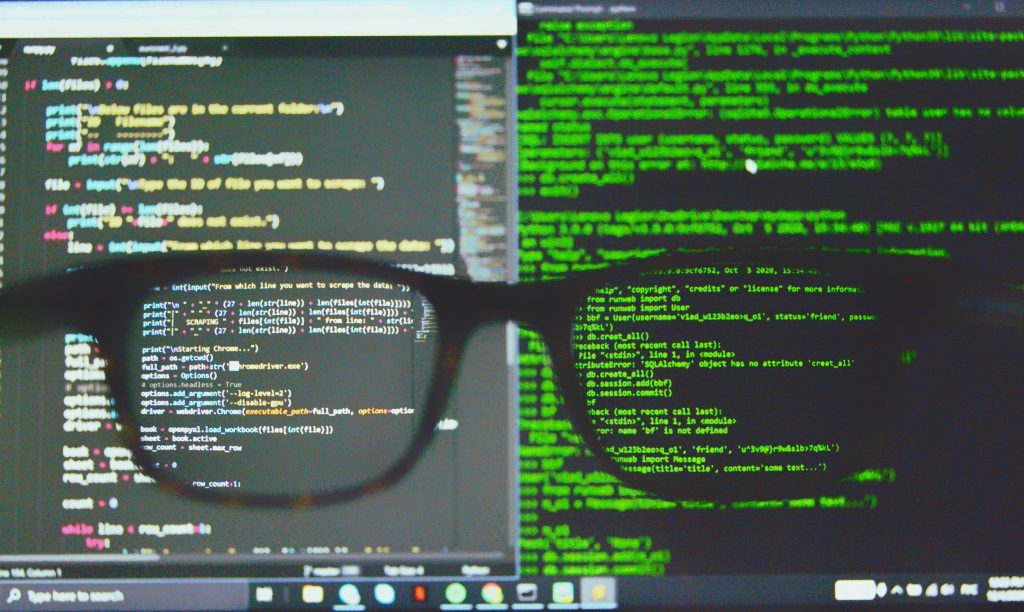
Using Help and Documentation
The Python terminal also features built-in help functionality. This is particularly beneficial if you’re unsure what a particular function does or how to utilize a module.
Accessing Help
You can access help for any function or module using the help() function. For example:
help(print)
This will provide you with documentation and usage information about the print function. Utilizing the help system can significantly speed up your learning process.
Importing Modules
As you become more comfortable in the terminal, you might want to use external libraries or modules. In the Python terminal, you can easily import them using the import statement.
Example of Importing a Module
To use the popular math module, you would do:
import math math.sqrt(16) 4.0
This opens up a realm of possibilities, allowing you to conduct more complex calculations or use various utilities provided by different libraries.

Using the Shell for Quick Scripts
While writing code in the terminal is mainly for testing and experimentation, you can also write quick scripts. For longer operations, it’s usually better to create a .py file, but sometimes a quick solution right in the terminal can save time.
Multi-line Statements
You can write multi-line statements in the terminal by using the proper indentation. For instance, if you want to define a function that takes multiple lines, you can do it like this:
def calculate_area(radius): … pi = 3.14159 … return pi * (radius ** 2) … calculate_area(5) 78.53975
This flexibility makes the terminal a great place for testing out ideas and writing snippets of code.
Utilizing the Global and Local Scope
Understanding scope is vital in programming. In the terminal, variables defined in the interactive shell are considered global, accessible throughout the session. Similarly, any variables defined within a function are local to that function and cannot be accessed outside it.
Example of Scope
def scope_example(): … local_var = “I’m local!” … return local_var scope_example() “I’m local!” local_var # This will raise an error NameError: name ‘local_var’ is not defined
This distinction is crucial as it affects how you design your code, especially in larger projects.
Customizing Your Environment
As you spend more time using the Python terminal, you might want to customize your environment. This can include changing colors, fonts, and settings for an improved user experience.
Virtual Environments
Using virtual environments allows you to manage dependencies and project settings more effectively. You can create a virtual environment with the following command:
python -m venv myenv
Activating it depends on your operating system. In Windows, you would use:
myenv\Scripts\activate
On macOS or Linux, use:
source myenv/bin/activate
This way, you can keep your projects organized and minimize compatibility issues.
Automating Tasks with Scripts
While the terminal is great for quick commands, you can also automate tasks by writing scripts. Regular use of the terminal can aid in understanding how to manage these scripts effectively.
Example of a Simple Script
Create a .py file with the following content:
import sys
def main(): for arg in sys.argv[1:]: print(f”Argument: “)
if name == ‘main‘: main()
Running this script in the terminal will print all command-line arguments passed to it, showcasing how you can build more complex functionalities.
Best Practices in the Python Terminal
As you grow more accustomed to the Python terminal, following some best practices can enhance your experience.
Keep Your Code Readable
Even in the terminal, maintain clear and readable code. Use meaningful variable names, proper indentation, and comments where necessary. This will not only make your code easier to understand but will also help you when you revisit your terminal sessions in the future.
Organize Your Code
Although the terminal is interactive, it’s still important to keep your workflow organized. Group similar commands together and separate different tasks as needed. This will prevent confusion and allow you to follow your train of thought effectively.
Take Notes
Utilize a separate text editor or note-taking app to jot down important commands or pieces of knowledge you uncover while using the terminal. This practice will help reinforce your learning and provide a handy reference for future coding sessions.
Learning Resources for Continuous Improvement
Continuous improvement is key to becoming proficient in Python programming. Here are some valuable resources:
| Resource Type | Description |
|---|---|
| Online Tutorials | Websites like Codecademy, Coursera, or Udacity offer interactive Python courses. |
| Books | Titles such as Automate the Boring Stuff with Python provide practical examples. |
| Community Forums | Websites like Stack Overflow and Reddit can be useful for advice and assistance. |
By utilizing these resources, you can build upon what you’ve learned in the terminal, expanding your Python skills well beyond the basics.
Conclusion
How effectively you use the Python programming terminal can significantly impact your learning and productivity as a programmer. By engaging with the terminal, practicing basic commands, utilizing help functions, and continuously challenging yourself, you can become more adept and confident in your Python skills.
Remember to treat the terminal as a learning tool—a place to experiment, fail, and ultimately succeed. Whether you’re just starting or looking to sharpen your skills, the Python terminal is there to help you every step of the way. Embrace it, and enjoy the journey!