Have you ever wondered how to set up Python programming on your Chromebook? If so, you’re in the right place! Python is a versatile and popular programming language often used for web development, data science, artificial intelligence, and much more. Installing Python on a Chromebook may seem daunting at first, but with the right approach, you’ll find it’s quite doable. Let’s guide you through the entire process step by step.

Understanding Chromebooks and Python
Before diving into the installation process, it’s essential to understand a little about what Chromebooks are and how Python fits into the picture.
Chromebooks run on Chrome OS, which is primarily designed for web-based applications. This means that traditionally, it hasn’t been as easy to run local software like Python. However, thanks to advancements in Google’s operating system, you can now easily install Linux applications, which include Python, on your Chromebook.
Python is an interpreted, high-level programming language known for its readability and flexibility. Whether you’re fulfilling a school project, automating tasks, or developing web applications, Python has a wealth of libraries and frameworks that make your coding experience both productive and enjoyable.
Preparing Your Chromebook
Update Chrome OS
Before installing anything, you must ensure your Chromebook is up to date. An updated operating system can prevent potential issues during installation.
- Click on the time in the bottom-right corner of your screen.
- Select the gear icon to open Settings.
- In the Settings menu, scroll down and click on “About Chrome OS.”
- Click on “Check for updates” to see if there’s a new version available.
- If an update is available, allow it to download and install.
Enable Linux (Beta)
Next, you’ll want to enable Linux (Beta), also known as Crostini, on your Chromebook. This feature allows you to run Linux applications directly.
- Open the Settings again.
- Scroll down and find “Advanced” and click to expand it.
- Look for “Developers” in the expanded menu.
- Find “Linux development environment (Beta)” and click on “Turn On.”
- Follow the prompts to set up Linux; you will be asked to allocate some disk space, usually around 10 GB is sufficient.
Access the Linux Terminal
Once Linux has been enabled on your Chromebook, you can access the terminal, which is where you’ll execute commands to install Python.
- Click on the app launcher in the bottom-left corner of your screen.
- Find the “Terminal” app and open it.
Familiarize Yourself with the Terminal
If you haven’t used the terminal before, it may be a bit unfamiliar. The terminal allows you to interact with your computer in a text-based format. Don’t worry; you won’t break anything by using it. Just be cautious about the commands you enter.

Installing Python
Check the Default Python Version
Most Chromebooks come with Python pre-installed. Before downloading a new version, it’s a good idea to check what’s already there.
In the terminal, type:
python3 –version
This command will show you the version of Python installed. If it’s not installed, or you want to install a different version, continue to the next steps.
Installing Python via APT
APT (Advanced Package Tool) is the package manager for Debian-based systems, which Chrome OS uses under the hood.
- Update the package list by running:
sudo apt update
- Then, to install Python 3, enter the following command:
sudo apt install python3
- Confirm the installation when prompted. The system will download and install Python.
Verify the Installation
After the installation is complete, verify that Python is installed correctly by checking its version again. In the terminal, type:
python3 –version
If it displays the version number, congratulations, you have installed Python successfully!
Installing a Code Editor
While you can write Python code in the terminal, you might prefer a dedicated code editor. There are many options available, so let’s look at a few popular ones.
Visual Studio Code
Visual Studio Code (VS Code) is one of the most popular code editors available. It’s feature-rich and supports many programming languages, including Python.
-
To install VS Code, first, download the .deb file by going to the Visual Studio Code download page and selecting the Debian version.
-
Move the downloaded file to your Linux files folder.
-
Navigate through the terminal to install it using the following command (replace
filenamewith the actual file name):
sudo dpkg -i ~/Downloads/filename.deb
- If you encounter dependency issues, run:
sudo apt install -f
Thonny
Thonny is a great beginner-oriented Python IDE. It’s user-friendly and perfect for learning.
- To install Thonny, execute the following commands in the terminal:
sudo apt install thonny
- Once installed, you can find it in your list of applications.
Other Editors
If you’re looking for alternatives beyond VS Code and Thonny, here are a few other excellent options:
| Code Editor | Description |
|---|---|
| PyCharm | A powerful IDE for Python development with robust features. |
| Atom | A highly customizable editor that supports various languages. |
| Sublime Text | Known for its speed and efficiency, perfect for any coding. |
Writing Your First Python Program
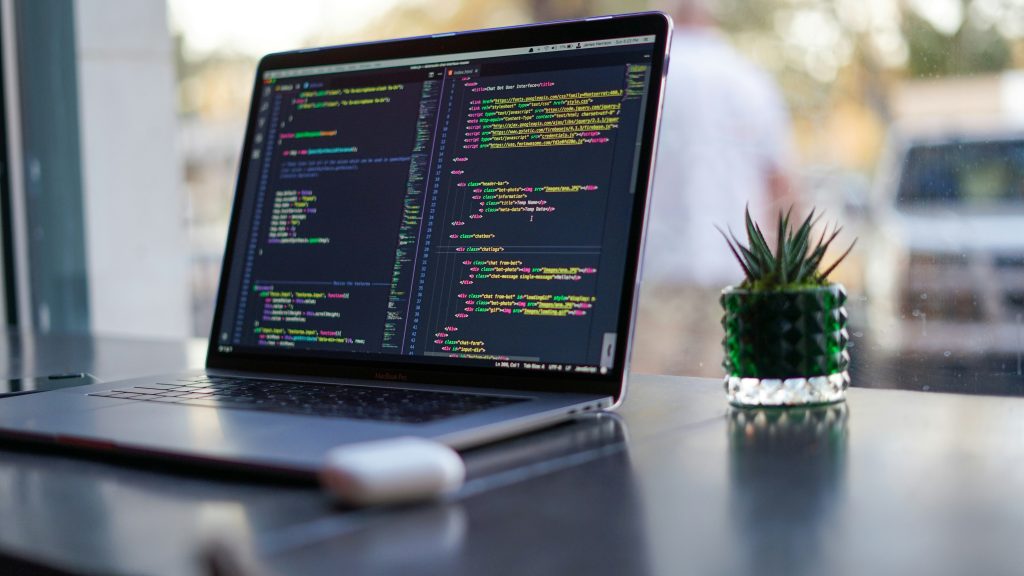
Now that you have Python installed and a code editor ready, it’s time to write your first program. It’s tradition to start with a simple “Hello, World!” program.
- Open your code editor.
- Create a new file and save it as
hello.py. - Write the following code in the file:
print(“Hello, World!”)
- Save the file.
Running Your Python Program
To run your Python program, you’ll use the terminal.
- Navigate to the directory where you saved
hello.py. If you saved it in your Linux files, you can find it by typing:
cd ~/Downloads
- Run the program by using the command:
python3 hello.py
- If everything is set up correctly, the terminal should display:
Hello, World!
Additional Python Libraries and Frameworks
Python has a vibrant ecosystem of libraries and frameworks that can help you with various tasks. Here are a few notable ones to consider.
NumPy
If you’re interested in data science, NumPy is a powerful library for numerical computations.
To install, use:
sudo apt install python3-numpy
Pandas
Pandas is another essential library for data manipulation and analysis.
To install it, use:
pip install pandas
Flask
For web development, Flask is a lightweight framework for building web applications.
To install Flask, use:
pip install Flask
Troubleshooting Common Issues
Every installation process can occasionally hit a snag. Here are some common issues you might encounter along with their solutions.
Installation Errors
If you encounter errors during installation, it could be due to an outdated package list. Always make sure to run:
sudo apt update
before installing any packages.
Permission Denied
If you receive a “permission denied” error, make sure you’re using sudo before the installation command. This gives you administrative privileges.
Python Not Found
If the terminal instance cannot find Python after installation, confirm that you’re using python3 instead of just python, as many systems differentiate between the two.
Best Practices for Writing Python Code
While knowing how to install Python is a great start, writing efficient and clean code is equally important. Here are some best practices to keep in mind.
Follow PEP 8 Guidelines
PEP 8 is the style guide for Python code, outlining conventions for formatting and structure. Following these guidelines will make your code more readable and maintainable.
Utilize Virtual Environments
Using virtual environments allows you to manage project-specific dependencies without affecting your global Python installation. Here’s how to set it up:
- Install
venv:
sudo apt install python3-venv
- Create a virtual environment in your project directory:
python3 -m venv myenv
- Activate the environment:
source myenv/bin/activate
Keep Learning
Lastly, the best way to improve your Python skills is through constant practice and learning. Online resources, coding platforms, and forums can be invaluable as you continue your programming journey.
Conclusion
Setting up Python programming on a Chromebook might seem challenging initially, but with this guide, you should be able to navigate the process smoothly. By enabling Linux, installing Python and your preferred code editor, and familiarizing yourself with basic coding practices, you’re well on your way to becoming proficient in Python programming.
Whether you’re interested in data analysis, web development, or automation, Python opens up an incredible array of opportunities. Remember, every expert was once a beginner, so keep coding, keep learning, and enjoy your programming adventures! Happy coding!
